
-1.png?width=800&height=157&name=1-playwire-logo-primary-2021%20(1)-1.png)


July 22, 2026

Editorial Policy
All of our content is generated by subject matter experts with years of ad tech experience and structured by writers and educators for ease of use and digestibility. Learn more about our rigorous interview, content production and review process here.
Key Points
- Google Search Console's Page Indexing report and URL Inspection tool are the two instruments you need to diagnose why a specific page isn't appearing in search results.
- The four most common indexing blockers are noindex tags, crawl errors, redirect loops, and thin content signals. Each has a distinct fix path.
- A page that isn't indexed earns zero pageviews, which means zero ad impressions and zero revenue, regardless of how well your monetization stack is configured.
- GSC's Page Indexing report can lag by days or freeze entirely during Google-side outages, so confirm the data is current before acting on what you see.
- Fix priority should follow revenue impact: high-traffic content types and your most monetizable pages first.
Your page isn't showing up in Google. You've published it, waited a few days, and searched for it directly. Nothing. Before you start randomly tweaking meta tags and hoping for the best, you need a systematic diagnosis. Guessing wastes time, and in an ad-supported business, every day a high-value page sits unindexed is a day it earns nothing: zero pageviews, zero ad impressions, zero RPS.
This guide walks you through the exact process for diagnosing what's blocking a page from Google's index and fixing it. We'll use two GSC tools almost exclusively: the Page Indexing report and the URL Inspection tool. Everything else is downstream of those two.

Start Here: Understanding What GSC Is Telling You
The Page Indexing report and the URL Inspection tool answer different questions. Knowing which one to reach for first saves you from chasing the wrong problem.
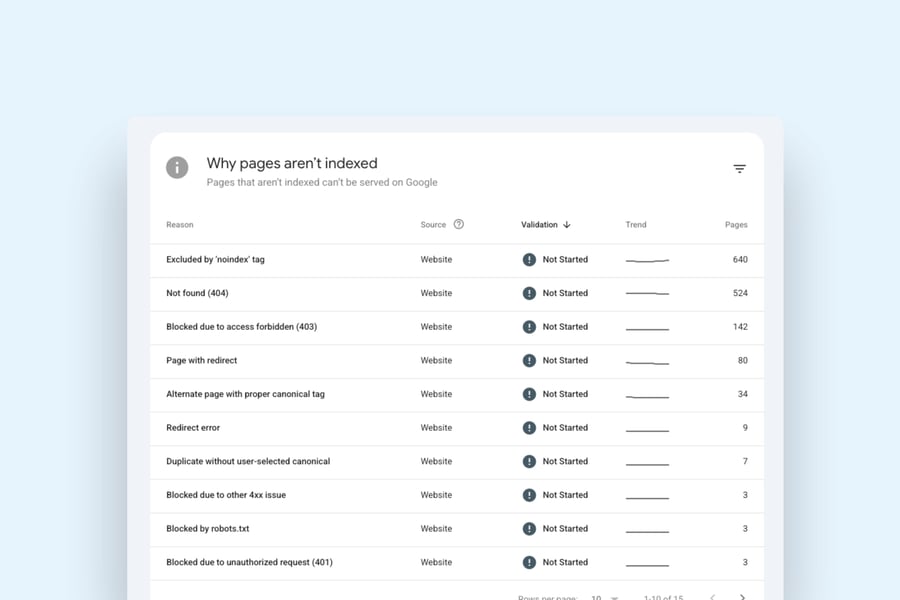
Google Search Console's Page Indexing report shows which pages Google has discovered, crawled, and indexed, and which ones it hasn't. It groups excluded pages by reason, which means it hands you a pre-sorted list of problem types. URL Inspection lets you examine a single URL in isolation, seeing exactly what Google sees when it hits that page. Use the Indexing report for triage. Use URL Inspection for root cause confirmation.
One important caveat before you start digging: GSC's Page Indexing report has experienced multi-week freezes, most notably stopping updates around November 2025 and remaining stuck for nearly 30 days. If the "last updated" timestamp looks stale, check Google's Search Status Dashboard before drawing any conclusions. Acting on frozen data is worse than acting on no data.
If you're new to the platform itself, our guide to what Google Search Console is and how it works for web publishers covers the foundational setup before you start pulling coverage reports.
How Long Does Indexing Actually Take?
Before diagnosing a problem, confirm there actually is one. New pages typically take anywhere from one day to a few weeks to appear in Google's index. Established sites with strong crawl history may see new content indexed within hours. Published something yesterday and it hasn't appeared yet? That's normal. Two weeks with no sign of it? Worth investigating.
The GSC 24-hour view, introduced in late 2024, shows performance data with only a few hours' delay and hourly granularity. For a publisher who just pushed a high-value piece, this means you can see whether it's gaining search traction before committing to a diagnostic deep-dive.

Reading the Page Indexing Report
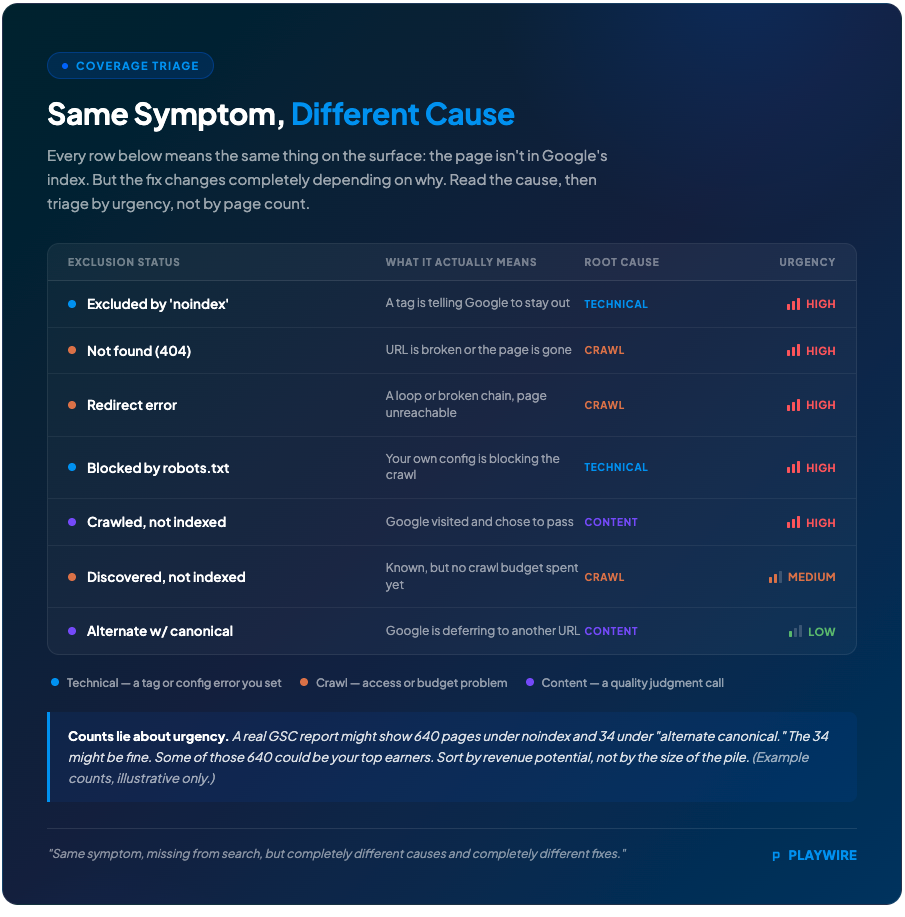
The Page Indexing report organizes excluded URLs into named categories. Each category is a different type of problem, and they require different fixes. Here's how to read the most common ones.
| Exclusion Status | What It Means | Urgency |
|---|---|---|
| Crawled - currently not indexed | Google crawled the page but chose not to index it | High. Content quality or signals issue |
| Discovered - currently not indexed | Google knows the page exists but hasn't crawled it yet | Medium. Crawl budget or priority issue |
| Excluded by 'noindex' tag | A tag is explicitly telling Google to stay out | High. Probably a configuration error |
| Redirect error | Google encountered a broken or looping redirect | High. Page is functionally unreachable |
| 404 (Not Found) | The page doesn't exist at the URL Google is trying to reach | High. Broken URL |
| Blocked by robots.txt | Your robots.txt file is preventing Google from crawling | High. Configuration error if unintentional |
| Alternate page with proper canonical tag | Google is deferring to a different URL as the canonical | Low-Medium. May be correct behavior |
| Soft 404 | Page returns a 200 status but appears to have no real content | High. Thin content signal |
The distinction between "Discovered - currently not indexed" and "Crawled - currently not indexed" trips up a lot of publishers. Discovered means Googlebot hasn't attempted to crawl the page yet, usually because your crawl budget is being allocated elsewhere. Crawled-not-indexed means Google did visit the page and made a deliberate decision not to include it. Same symptom, missing from search, but completely different causes and completely different fixes.
The categories that typically cause the most publisher pain are the first three: Crawled-not-indexed, noindex exclusions, and redirect errors. Pull each of those lists and prioritize by traffic potential before you start fixing. For a deeper look at what each GSC report actually does, our feature-by-feature breakdown of what Google Search Console does maps every tool to a specific publisher use case.
How to Get Google to Index Your Site: Submit Your Sitemap First
If you're starting from scratch with a new site or a recently migrated domain, getting Google to index your website begins with one step that's universally recommended for good reason: submit an XML sitemap through Google Search Console.
A sitemap tells Google exactly which URLs exist on your site and signals which ones you consider important. Without one, Googlebot discovers your pages entirely through links, which is slower and less reliable, especially for newer domains with limited external link equity. Here's the process:
- Verify your site in GSC: If you haven't added your property to Google Search Console yet, do that first. You'll need to verify ownership via DNS record, HTML file, or Google Analytics. Our step-by-step guide to setting up Google Search Console for publishers walks through every verification method.
- Generate your XML sitemap: Most CMS platforms (WordPress, Wix, Squarespace) generate one automatically. In WordPress, plugins like Yoast SEO or Rank Math handle this. Your sitemap URL is typically
yourdomain.com/sitemap.xmloryourdomain.com/sitemap_index.xml. - Submit it in GSC: Navigate to Sitemaps in the left-hand menu, paste your sitemap URL, and click Submit. GSC will show you how many URLs were discovered and whether any errors were detected.
Submitting your sitemap doesn't force Google to index everything in it, but it does ensure Google knows what exists. Crawl priority and content quality determine what actually makes it into the index.
Essential Background Reading:
- What Is Google Search Console? A Guide for Web Publishers: The foundational overview of GSC. What it tracks, why it exists, and how publishers should think about it before diving into coverage reports.
- How to Set Up Google Search Console: A Step-by-Step Guide for Publishers: Covers property setup, verification methods, and sitemap submission before you can run any of the diagnostics in this article.
- What Does Google Search Console Do? A Feature-by-Feature Breakdown: Maps every GSC report and tool to a specific publisher use case, including the Page Indexing report and URL Inspection tool used throughout this guide.
- The 8 Best SEO Tools: How GSC stacks up against third-party crawlers and rank trackers. Useful context for understanding when GSC data is definitive and when you need a supplementary tool.
Check robots.txt Before Anything Else
A robots.txt file sitting at your domain root can block Google from crawling entire sections of your site. This is one of the most common and most damaging configuration errors publishers encounter, particularly after site migrations or hosting changes.
Check yours at yourdomain.com/robots.txt. A line like Disallow: / blocks all crawlers from all pages. Accidental blanket disallows are far more common than you'd think, especially when staging site configurations carry over to production. Confirm that any Disallow rules are intentional and aren't blocking URLs you want indexed.
One distinction worth understanding: robots.txt blocks crawling, not indexing. A page blocked by robots.txt can still appear in Google's index if other sites link to it. Google just won't be able to read its content. A noindex tag, by contrast, allows crawling but prevents indexing. They're different levers and require different diagnostic approaches.

The Four Core Indexing Blockers and How to Fix Them
Most indexing failures trace back to one of four root causes. Each has a specific diagnostic path and a concrete fix.
Noindex Tags
A noindex tag is an explicit instruction to Google not to index the page. It's useful in the right context, admin pages, thank-you pages, duplicate content, and catastrophic when it ends up on a page you actually want to rank.
Run URL Inspection on any page showing "Excluded by 'noindex' tag" in your Coverage report. The tool will show you exactly where the tag is coming from. There are three possible sources, and each requires a different fix.
- HTTP header noindex: Your server is sending
X-Robots-Tag: noindexin the response headers. Check your server configuration or CDN settings. This often surfaces after a site migration or hosting change. - Meta robots tag: The page itself contains
<meta name="robots" content="noindex">in the<head>. Check your CMS template, page-level settings, and any SEO plugins that might be generating this automatically. - CMS-level setting: WordPress and most other CMS platforms have a global "Discourage search engines" toggle and per-page indexability settings. It's common for staging configurations to carry over to production.
Once you've removed the noindex instruction, use the "Request Indexing" button in URL Inspection to push Google to recrawl. Don't wait passively.
Crawl Errors
Crawl errors prevent Google from accessing your page at all. A 404 means the page doesn't exist at that URL. A server error (5xx) means Google tried to reach it but your server failed to respond properly. Both result in no indexing.
For 404 errors, the fix depends on intent. If the page was deleted intentionally and has no replacement, let it 404 and clean up any internal links pointing to it. If the page should exist but doesn't, restore it or set up a 301 redirect to the closest relevant replacement. Never redirect a 404 to your homepage. Google sees through it, treats the original URL as gone anyway, and it makes your site worse for users.
For 5xx errors showing up in GSC, start with your hosting environment. Consistent server errors on specific pages often indicate a timeout issue, a plugin conflict, or a resource constraint. Check your server logs alongside the GSC data to identify the pattern.
Redirect Loops and Redirect Chains
Redirect loops are exactly what they sound like: Page A redirects to Page B, which redirects back to Page A. Google won't crawl indefinitely, so it gives up and the URL gets excluded. Redirect chains are less severe but still problematic. Chains of more than two or three hops slow down Googlebot and dilute any link equity the URL has accumulated.
Audit your redirects using a crawl tool. The Coverage report will flag redirect errors, but it won't map the full chain for you. A tool like Screaming Frog or a browser extension that shows redirect hops will trace the full path. Once you have the map, collapse chains to a single direct 301 from the original URL to the final destination.
Thin Content and "Crawled - Currently Not Indexed"
This is the most frustrating exclusion status because Google isn't telling you there's a technical error. It's telling you the page didn't meet the bar for indexing, without specifying exactly why. "Crawled - currently not indexed" is Google's way of saying the page isn't worth indexing in its current state.
Pages in this status may include content that could rank with better optimization, which makes this category worth a deliberate review rather than a blanket shrug. Common causes: pages that are very short and offer little unique value, pages nearly identical to other pages on your site, pages with low-quality or auto-generated content, and pages Google has determined have better alternatives elsewhere on the web.
The fix is editorial, not technical. Audit the content on those flagged URLs honestly. If it's thin, either expand it into something substantive or consolidate it with related content using a canonical tag or redirect. If the page is legitimately thin by design, a tag page, a category landing page with minimal description, add real content or canonicalize to avoid the crawl cost. For publishers specifically, using Google Search Console to improve SEO on your publishing site covers how to work through these content quality signals systematically.
Related Content:
- Google Search Console for Publishers: How to Use GSC to Protect Ad Revenue: The pillar guide connecting GSC diagnostics to revenue outcomes. Covers the full traffic-to-monetization pipeline that indexing fixes feed into.
- How to Use Google Search Console to Improve SEO on Your Publishing Site: Extends coverage diagnosis into a broader SEO improvement workflow, including content quality signals and query-level optimization.
- The Ultimate SEO Best Practices Checklist: A comprehensive publisher checklist covering technical SEO, on-page signals, and content quality. The editorial counterpart to the technical fixes in this guide.
- How to Deal with Invalid Traffic: Addresses the traffic quality issues that can compound when low-quality pages get indexed and attract bot traffic rather than real sessions.
- The Quality vs. Quantity Revolution: Why Ad Load and Traffic Stability Matter More Than You Think: Explains why consistent indexed traffic outperforms volatile pageview spikes for sustained RPS. The revenue case for systematic indexing maintenance.
Crawl Budget: The Indexing Problem Large Publishers Miss
Generic guides aimed at five-page sites don't talk about crawl budget. Publishers pushing out dozens of articles per week need to understand it.
Google allocates a crawl budget to each site based on its authority and server capacity. Googlebot will crawl a set number of pages within a given window, then stop. If your site has thousands of URLs, low-value pages, faceted navigation variations, parameter-based duplicates, and orphaned tag archives, can consume a meaningful portion of that budget before Googlebot ever reaches your new revenue-generating content.
The practical consequence shows up clearly in your Page Indexing report: a growing pool of "Discovered - currently not indexed" URLs. Google knows those pages exist but isn't spending crawl budget to visit them. The fix is reducing the noise in your crawlable URL space.
Common budget leaks worth auditing:
- Parameter-based URL variations: Filter parameters in your CMS or consolidate them with canonical tags.
- Paginated archives beyond a few pages deep: Use
rel="next"andrel="prev"correctly, or noindex deep pagination. - Low-value tag and category pages: Noindex or canonicalize archive pages with minimal unique content.
- Internal search result pages: Block these in robots.txt. Google doesn't want to index your search results, and you don't want it spending budget on them.
For a publisher with 100,000 pages, crawl budget optimization isn't optional. It's the difference between new content getting indexed within hours versus sitting in the "Discovered" queue for weeks while your competitors' fresher articles take the rankings. News publishers face this problem acutely. Our guide on using Google Search Console for timely news content covers crawl prioritization strategies built specifically for high-frequency publishing.
Internal Links: How Google Discovers New Pages
Submitting a sitemap is how you tell Google a page exists. Internal links are how Google confirms that page matters.
Googlebot follows links. A page with no internal links pointing to it, sometimes called an orphan page, may appear in your sitemap but will receive minimal crawl priority. Google treats the absence of internal links as a signal that the page isn't important. For ad-supported publishers, orphan pages are a quiet revenue leak: content that cost you to produce but earns nothing because it never gets indexed or ranked.
The fix is straightforward. When you publish new content, link to it from at least two or three related existing pages. Your most authoritative content, high-traffic articles and cornerstone guides, should pass link equity down to newer content in the same topic cluster. This both accelerates crawling of new pages and signals topical relevance to Google.
Run a crawl of your site periodically to surface orphan pages. Any URL in your sitemap with zero internal links pointing to it is a candidate for either consolidation or deliberate linking from related content. Building a search strategy around your content model covers how topic clusters and internal linking architecture work together to accelerate indexing across your full content catalog.
Next Steps:
- How to Get Google to Index Your Site Faster (And Why Every Hour Counts): Acceleration techniques beyond the URL Inspection request, for publishers who need fixed pages back in the index as quickly as possible.
- How to Use Google Search Console: A Revenue-Focused Workflow for Ad-Supported Publishers: Builds a full operational cadence on top of the diagnostic skills in this guide. The weekly, monthly, and post-publish review rhythm for revenue-minded publishers.
- SEO for Publishers: How to Build a Search Strategy Around Your Content Model: Covers how topic clusters and internal linking architecture work together to prevent orphan pages and accelerate indexing across your full content catalog.
- Session-Based Ad Layout Strategy: Beyond the Pageview Mindset: Once your pages are indexed and traffic is flowing, this guide covers how to maximize RPS at the session level rather than optimizing for individual pageview metrics.
- SEO Publishing Best Practices: What the Data in Google Search Console Is Telling You: Translates GSC signals into editorial and technical decisions. The next layer of analysis after coverage issues are resolved.
Using URL Inspection to Confirm Your Fix
After you've made a change, don't just trust that Google will eventually pick it up. The URL Inspection tool lets you see any page exactly as Google sees it, and the "Test Live URL" function shows the current state of the page, not the cached version from Google's last crawl. This distinction matters when you're verifying that a noindex tag has been removed or a redirect chain has been collapsed.
The process is simple. Open URL Inspection, paste the URL, and click "Test Live URL." Look at three things:
- Indexability: Does the report show "URL is on Google" or does it still flag an exclusion reason?
- Robots.txt and noindex status: Are there any directives preventing crawling or indexing?
- Redirect path: If the URL redirects, where does it end up and how many hops does it take?
Once you've confirmed the fix is live, click "Request Indexing." This nudges Google to prioritize a fresh crawl. It's not instant, but it's meaningfully faster than waiting for Google's regular crawl schedule to cycle back to that URL. For publishers who need new content indexed quickly after a fix, our guide on how to get Google to index your site faster covers every acceleration technique available.
The Fix Checklist
Work through this list for any page flagged in your Coverage report before moving to the next one.
- Confirm GSC data is current: Check the report's last updated timestamp and cross-reference with the Google Search Status Dashboard before acting.
- Identify the exclusion reason: Pull the exact status from the Page Indexing report. Distinguish between "Discovered" and "Crawled - currently not indexed". They require different responses.
- Run URL Inspection: Use "Test Live URL" to see the page's current state from Google's perspective.
- Check robots.txt: Confirm no Disallow rules are blocking the URL or its parent directory.
- Check for noindex tags: Look in HTTP response headers, the page
<head>, and your CMS settings. - Resolve crawl errors: Fix or redirect broken URLs, address server errors at the hosting level.
- Audit redirects: Collapse chains and eliminate loops, confirming the final destination is the correct canonical URL.
- Evaluate content quality: For "Crawled - currently not indexed," assess whether the page meets a substantive content threshold.
- Add or strengthen internal links: Confirm at least two or three internal links point to the page from related content.
- Request indexing: After the fix is confirmed live via "Test Live URL," submit a reindex request.
- Monitor for resolution: Check back in three to five days. If the status hasn't changed, revisit the diagnosis.
See It In Action:
- Squaredle Case Study: How a technically complex single-page word puzzle app doubled ad revenue by pairing strong technical implementation with a monetization partner who could keep up.
- Taking Control of Your News Site Ad Strategy: A Publisher's Technical Playbook: A real-world look at how news publishers with high publish frequency manage the indexing-to-monetization pipeline under deadline pressure.
- Google Search Console Guide for Publishers: Traffic, Indexing, and Ad Revenue: Shows how the GSC diagnostic workflow in this article connects to downstream revenue outcomes with publisher-specific data and context.
Prioritize Fixes by Revenue Impact
Not every excluded page is equally urgent. An indexing error on a page that earns 5,000 pageviews per month when healthy is a five-alarm problem. A thin tag page that would barely move traffic is a lower priority.
Sort your excluded URLs by historical traffic data in GSC or your analytics platform. Fix the highest-revenue-potential pages first. For ad-supported publishers, impressions and clicks in GSC are leading indicators of the pageview volume your ad stack runs on, which means an unindexed page isn't just an SEO problem. It's a direct revenue loss measured in missing ad impressions, unfilled sessions, and RPS that never materializes.
Understanding how traffic stability and ad load interact adds another lens here: consistent indexed traffic outperforms volatile traffic spikes when it comes to sustained RPS, so indexing fixes on evergreen content often have outsized long-term yield impact.
Build the habit of running a monthly Coverage report audit, even when nothing looks obviously broken. Indexing errors accumulate quietly, especially on high-volume publishing sites that push new content daily. The full revenue picture, from GSC impressions through to session-level yield, is covered in our complete guide to using Google Search Console to protect ad revenue.
Frequently Asked Questions
How do I check if Google has indexed my site?
Open Google Search Console and navigate to the Page Indexing report. It shows which of your pages are indexed and which are excluded, along with the reason for each exclusion. You can also use the URL Inspection tool to check any individual page. For a quick sanity check outside GSC, search site:yourdomain.com in Google. Any results returned are indexed pages, though this method undercounts significantly compared to GSC data.
Why is my website not showing up on Google?
The most common reasons are that the page hasn't been crawled yet (normal for new content, usually resolves within a few days to a few weeks), a noindex tag is blocking indexing, robots.txt is blocking the crawler, or the content was crawled but didn't meet Google's quality threshold for inclusion. Check the Page Indexing report in GSC for the specific exclusion reason on your URL.
Can I force Google to index my site immediately?
You can accelerate crawling but not guarantee immediate indexing. The URL Inspection tool in Google Search Console includes a "Request Indexing" button that submits a URL for prioritized crawling. This typically shortens the wait from weeks to days. Submitting a complete XML sitemap also helps Google discover all your pages faster. There's no way to force instant indexing for arbitrary URLs.
How many indexing requests can I submit per day in GSC?
Google limits manual indexing requests through the URL Inspection tool. The standard quota is approximately 10 URL submissions per day for most sites. For larger sites needing to push many URLs quickly, submitting or updating your XML sitemap is more practical than submitting URLs individually.
What does "Crawled - currently not indexed" mean?
It means Google visited the page and made a deliberate decision not to include it in the index. This is almost always a content quality signal. The page may be too thin, too similar to other pages on your site, or not sufficiently useful relative to other pages covering the same topic. The fix is editorial: either substantially improve the content, consolidate it with related pages using a canonical tag, or redirect it to a more authoritative version.
What is the difference between "Discovered" and "Crawled - currently not indexed"?
"Discovered - currently not indexed" means Google knows the page exists, typically from your sitemap or an internal link, but hasn't visited it yet. This is usually a crawl budget issue. "Crawled - currently not indexed" means Google did visit the page but chose not to index it, which is a content quality issue. Same end result, but different root causes requiring different fixes.
How Playwire Fits Into the Revenue Picture
Fixing indexing issues gets your content in front of readers. What happens after the click determines how much money those pageviews actually generate.
The indexing-to-revenue pipeline runs in sequence: GSC impressions forecast traffic, clicks become sessions on your site, sessions generate the pageviews that feed your ad stack, and your ad stack converts those pageviews into RPS. Every link in that chain matters. An unindexed page breaks the chain at step one.
Once your pages are indexed and traffic is flowing, your monetization stack takes over. Here's where we come in:
- Yield optimization across every session: Our RAMP platform makes sure the sessions your fixed pages deliver are monetized through header bidding, price floor optimization, and demand competition across 30+ SSPs and DSPs.
- Transparent analytics: Our reporting shows you exactly how each page and content type performs, down to the individual ad unit. You'll know immediately which pages recovered after an indexing fix and what they're earning.
- Partner Success monitoring: Our team watches your setup continuously, so monetization issues don't compound while you're focused on the SEO layer.
Getting indexed is the first problem to solve. Earning everything those indexed pages are worth is the second. We've got the platform and the team to handle the second one.
Ready to see what your recovered traffic could be earning? Apply to work with Playwire and we'll run the numbers on your current setup.
